A Step-by-step, Admin-level Walkthrough
We have created a step-by-step, admin-level walkthrough for deploying FIDO passkeys (hardware security keys) with Google Workspace at enterprise scale. Each step explains what to click and best-practice notes. This approach to security enforces phishing-resistant authentication by requiring FIDO security keys for Google Accounts managed under your domain.
Step 1: Enable 2-Step Verification (2SV) in the Admin Console
Steps
- Sign in to Google Admin Console
- Go to:
Security → Authentication → 2-step verification - Turn Allow users to turn on 2-step verification to ON
- Ensure Enforcement is set to allow future enforcement
💡 Do not enforce yet, as you’ll do this in stages, starting with the highest-risk members then expanding organization wide.
Step 2: Configure Enforcement Date & Enrollment Period
Steps
- In the 2-step verification settings:
- Set an enforcement date (or leave unset during pilot)
- Configure the New user enrollment period (e.g., 7–14 days)
💡 Best Practice
- Start with no enforcement date during testing
- Use short enrollment windows later to tighten security
Step 3: Restrict 2SV Methods to “Security Keys Only”
Steps
- In 2-step verification → Methods
- Enable Security keys
- Disable all other methods:
- Google Prompt
- Authenticator apps
- SMS/voice codes
- Backup codes (optional, but recommended to disable later)
⚠️ This step is
critical, leaving other methods enabled (like SMS, or OTP) weakens the security model.
Step 4: Create a Test User Group
Steps
- Go to Directory → Groups
- Create a group (e.g., FIDO-Pilot-Users)
- Add:
- IT admins
- Security team members
- A small set of friendly pilot users
💡 Keep this group small and technical at first.
Step 5: Enforce “Security Keys Only” for the Test Group
Steps
- Go to Security → Authentication → 2-step verification
- Select the pilot group
- Turn Enforce 2-step verification to ON
- Confirm only security keys are allowed
💡 At this point, only users in the pilot group are required to use FIDO keys.
Step 6: Have Users Register Two Hardware Security Keys
User Enrollment Flow
- User signs in to their Google Account
- Navigates to myaccount.google.com/security
- Selects Security Keys
- Registers:
- Primary key (daily use)
- Backup key (stored securely)
💡 Admin Best Practices
- Use FIDO2-certified hardware keys
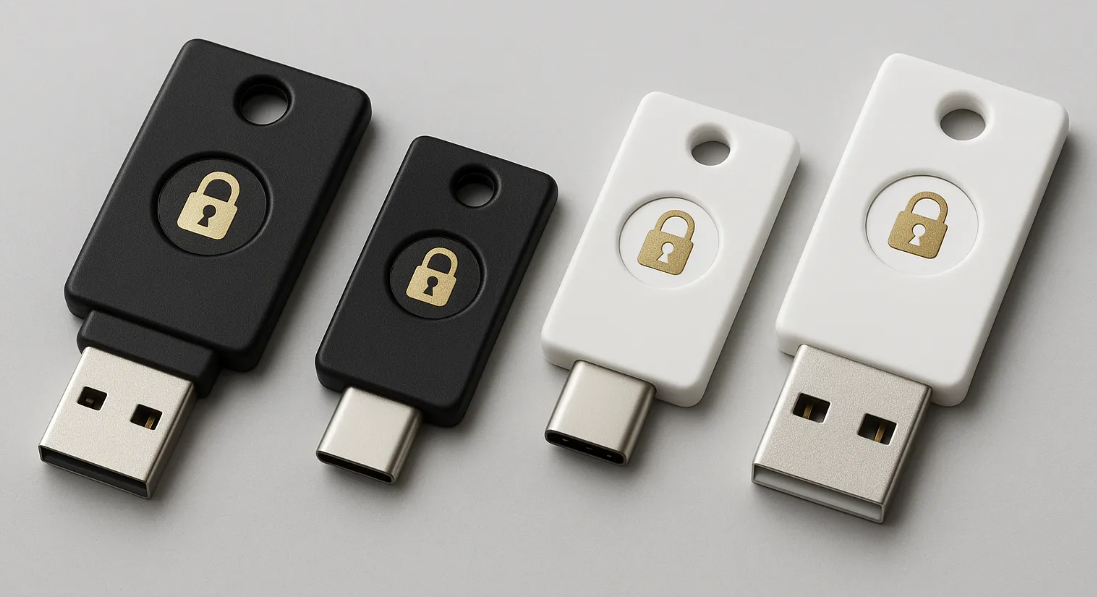
- Mix form factors (USB-A/USB-C/NFC)
- Label and track issued keys
- Document emergency recovery procedures
Step 7: Validate Authentication & Monitor Behavior
What to test
- Login from:
- New device
- Incognito browser
- Phishing-style login attempts
- Key loss scenario (backup key works)
- Admin access flows
- Mobile vs desktop behavior
Admin Tools
- Review Login audit logs
- Confirm:
- FIDO key challenge is enforced
- No fallback methods are offered
💡 This is where most misconfigurations are caught.
Step 8: Expand Enforcement to Additional Groups
Recommended rollout order
- IT & Security teams
- Executives
- Privileged users
- All remaining employees
Repeat:
- Group creation
- Enforcement
- Key enrollment
- Validation
Step 9: Enforce Passkeys Organization Wide & Remove Legacy Factors
Once confidence is high:
- Enforce Security Keys Only at the root OU
- Disable:
- SMS
- TOTP apps
- Google Prompts
- Lock down recovery options
💡 This completes your
phishing-resistant Google Workspace deployment.
Final Outcome
✔ FIDO-only authentication
✔ No shared secrets
✔ No OTPs
✔ No phishing risk
✔ Strong compliance posture
Want help getting started?
Tx Systems proudly supports:
- Security key selection & sourcing
- Pre-enrollment and key provisioning
- Pilot program design
- Enterprise rollout planning
- User training & documentation
Contact us today at
www.txsystems.com/contact-us by email at
MFA@txsystems.com or by phone at
858 622 2004